Google Ads Is Now Advertising Your Website’s Discounts — Unless You Say No
- October 20, 2026
-
365admin2015
- Uncategorized
 5 mins read
Since October 12, 2026, Google has been able to read the offers on your website and adding them to your ads on its own. That is the heart of Google Ads automated promotions, and it is switched on by default for eligible accounts. If you manage ads for clients, or run them for your own business, it’s worth checking your accounts now. Our digital marketing team put this guide together so you can check your accounts quickly.
What Is Changing?
Google Ads sent an email to some advertisers saying that, from October 12, it will find promotions on their websites and attach them to campaigns.
Google’s own help page explains the idea: Google Ads “identifies and sources promotions from your website landing pages, such as ‘Buy one get one free’” and attaches them to eligible ads.
For example, if your landing page says “20% off on black sweaters,” Google may pull that out and show the 20% discount right inside your ad.
A promotion asset is simply the extra line in your ad that shows an offer, like “Save 20%” or “Free shipping”. Normally you write it by hand. Now Google can write it for you.
Who Is Affected?
Not everyone. Google says an account is eligible when it has:
- Active Search or Performance Max campaigns,
- with location assets attached (the address, phone and map details pulled from your Google Business Profile, including Local Ad campaigns), and
- no manual promotions already running on that campaign, and
- ads that follow Google’s normal advertising policies.
If a campaign already has a promotion you added yourself, Google says the automated system skips it. That is useful: adding your own promotions is the simplest way to stay in control.
How Long Do These Promotions Last?
Google’s help page notes that each automated promotion may serve for less than 24 hours and can be switched on again as long as Google can keep confirming the offer is still visible on your website. Google says this is expected to change once it can read start and end dates from pages.
That means the system leans on what your site shows right now. If an old banner stays up after a sale ends, an expired offer could slip into your ads.
The Upside and the Risk
The upside:
- Less manual work when you run frequent sales.
- Offers appear directly in ads, which can help shoppers decide.
- Google says it checks that offers are active and not expired.
The risk:
- Google might pick an offer you did not want to feature, or one with conditions the short ad line does not show (minimum spend, limited sizes, “members only”).
- A stale banner or a test page could be picked up.
- Teams running tightly timed campaigns lose control of the exact dates and wording.
It’s worth reviewing these settings regularly, so Google’s choices keep matching your current pricing, eligibility rules and brand messaging.
3 Checks to Run on Your Google Ads Account Now
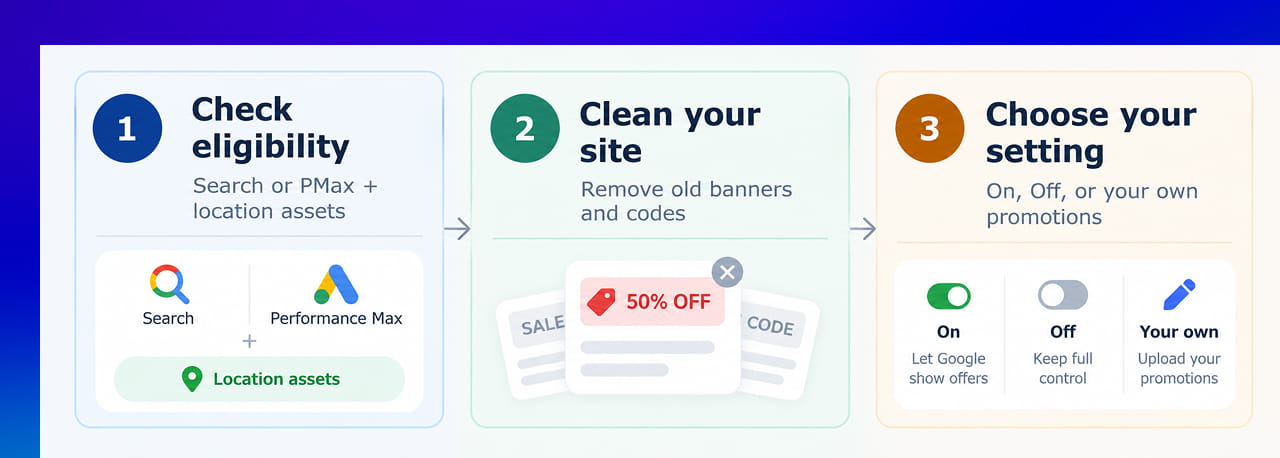
A quick pre-deadline checklist for Google Ads automated promotions.
- Check whether you are eligible. Look for campaigns that are Search or Performance Max and have location assets linked. If you have none, this probably will not affect you yet.
- Clean up your website. Remove expired banners, old coupon codes and test offers from landing pages. Treat every visible offer as something Google may advertise.
- Decide: on, off or manual. Turn the feature on if you like the idea and trust your pages. Turn it off if you want full control. Or upload your own promotions where you need exact dates and wording.
How to Turn It Off (Account Level)
Google’s help page gives these steps for opting out:
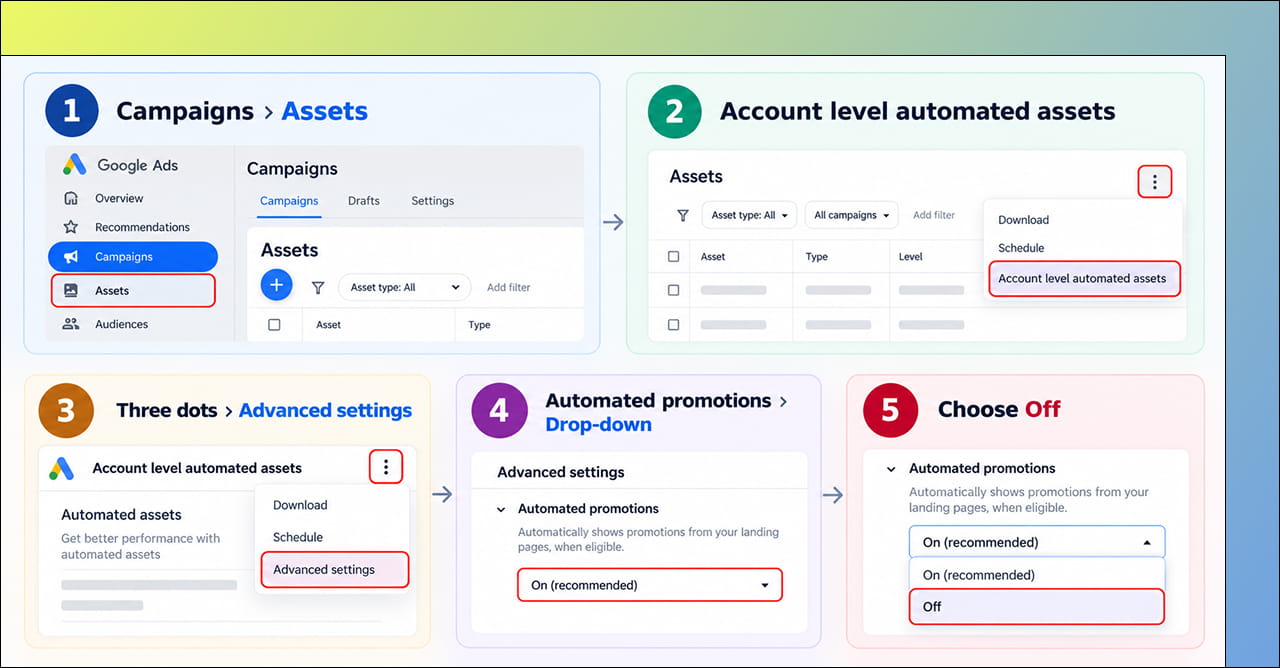
The opt-out path in Google Ads. Menu names can shift slightly, so follow Google’s help page if your screen differs.
- In the Campaigns menu, open Assets.
- In the filter bar, click the three-dot More icon and choose Account level automated assets.
- On that page, click the three-dot More icon again.
- Choose Advanced settings.
- Open the Automated promotions drop-down and choose Off. Google may ask for a reason.
How to Spot the Ones Google Added
After the rollout, you can see them in your account:
- Go to Assets in the Campaigns menu.
- In the filter bar, choose Asset type, then Promotion.
- Look at the Added by column. Automated ones are labeled Google AI.
- Hover over “Google AI” to see where Google found the offer.
If you don’t see any yet, check again after your ads have run for a few days.
Reporting Tip From Google
Google suggests splitting your reports by click type, so you can see how people interact with the offer itself. It also reminds advertisers to look at overall impressions and conversions, since the whole campaign may improve even when clicks on the promotion bubble look low.
Quick Takeaways
- Since October 12, 2026, Google can automatically add promotions from your site to eligible ads.
- It applies to Search and Performance Max campaigns with location assets and no manual promotions.
- Turn it off in Assets, Account level automated assets, Advanced settings, Automated promotions.
- Clean up old banners on your site first, because Google reads what is visible there.
- Adding your own promotions gives you exact control over dates and wording.
LET'S TALK: TAKE CONTROL OF YOUR GOOGLE ADS PROMOTIONS
Google Ads is making it easier for eligible advertisers to automatically pull promotions from their websites and add them to ads. While this can reduce manual work, it can also create problems if old banners, expired offers, test promotions, or offers with specific conditions are still visible on your website.
At Outsourced365, we help businesses keep their websites, landing pages, and digital marketing campaigns aligned so you have better control over what customers see. Whether you need to review your Google Ads setup now that the rollout has started keep your website offers updated, our team can help.
We can help you:
- Review your Google Ads account for automated promotion eligibility
- Check your website for expired offers, banners, and outdated promotions
- Review landing pages to make sure visible offers are accurate
- Manage and maintain website content and promotional pages
- Support your Google Ads and digital marketing campaigns
- Build or update landing pages for current promotions
- Provide ongoing website maintenance to keep offers and content up to date
- Help with web development when your website needs changes or improvements
If you're concerned about Google automatically selecting promotions from your website, now is a good time to review what is visible on your pages and how your ads are configured. Get in touch with Outsourced365 through our contact form and let's make sure your website and Google Ads are working together the way you want.
Outsourced365 Services are designed to help you grow
Contact us Today!
Why Companies Build Websites with Outsourced365
With our web design services, you will get:
- Modern, conversion-focused layouts
- Responsive design across all devices
- Optimized user experience and navigation
- Scalable websites built for growth

Related Posts
See all posts