Google Ads Lead Forms Can Now Mark Qualified Leads Automatically (Lead Scoring Explained)
- November 24, 2026
-
365admin2015
- Outsourcing
 5 mins read

Getting leads from Google Ads is one thing. Knowing which ones are worth a phone call is another. Google Ads lead forms can now tag a lead as “qualified” on their own, based on how the person answers a question in your form. This is often called lead scoring, though Google’s own name for it is “qualifying responses”. If you pay for leads that never turn into customers, it is worth setting up, and our digital marketing team can help you plan it.
Here is how it works, what to watch out for and how to use it well.
First, What Is a Lead Form?
A lead form is a short form that opens inside your Google ad. Someone interested in your service fills in their name, phone or email without ever visiting your website. Google’s help page says: “Lead forms help you generate leads by letting people submit their information in a form directly in your ad.”
A lead is simply a person who has shown interest and shared their details. A qualified lead is one who is a good fit and ready to talk.
What Is New?
Until now, every submission looked the same. A person who wanted to start tomorrow and a person who was only browsing both arrived as one more row in your list.
Now you can add a qualifying question to the form. This is a multiple-choice question, such as “When do you want to start?”. You pick which answers show a strong prospect. Google’s help page on creating lead forms explains it this way: “By turning a multiple-choice question into a ‘qualifying question’ and selecting the specific answers that indicate a strong prospect, matching submissions will automatically be tagged as a qualified lead in your data outputs.”
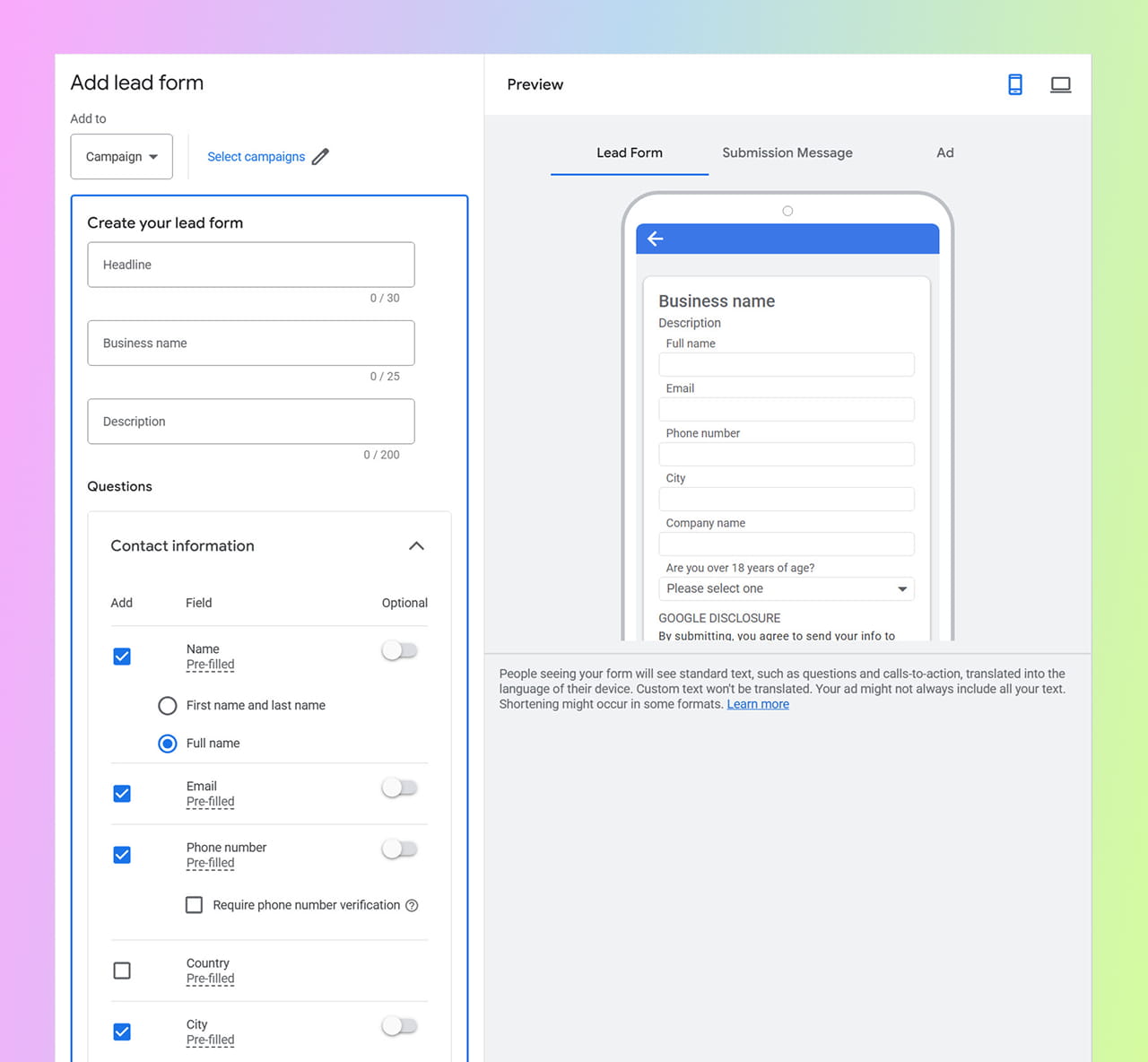
Think of it like a receptionist who puts a star on the enquiries that matter most, before anyone on your team has called.
Is It Really “Lead Scoring”?
Not exactly, and it helps to be clear about this. Google’s pages call the feature qualifying responses. We found no points or numbers in Google’s pages. A lead is either tagged as qualified because they picked a qualifying answer, or it is not. So treat “lead scoring” as the everyday nickname, not a number out of 100.
The Rules You Need to Know
According to Google’s page on qualifying responses:
- Search campaigns only. “Qualifying responses are available for Search campaigns only.”
- Multiple-choice questions. This is the only type the page describes.
- They cannot be optional. Qualifying questions can’t be marked as optional, so every person must answer.
- Older forms may need replacing. If your existing form has no qualifying question, you must add one, and that may mean creating a new form.
- You choose the winning answers. You select one or more answers that count as qualifying.
Other lead form basics from Google’s help page on using lead forms in campaigns: they work with Search and Performance Max campaigns, and you can add only one lead form to a campaign.
Where Do Qualified Leads Show Up?
Google says each lead gets a lead stage in the data you download or send out. That data can go to a CSV file, a webhook (a link that sends leads straight into another tool, such as your CRM) or the Google Ads API (a way for software to pull your data).
Google also says that when a qualifying question runs in an active campaign, a conversion type is added to the Qualified lead goal, called “Lead form – Response qualified (Google-hosted)”.
Be careful here. Google’s page does not explain how bidding uses this goal, so do not promise that it will automatically improve your results.
A Second Way to Mark Quality: Your Own Follow-Up
Google also lets you tell Ads which leads your team judged as good after speaking to them. Its page on qualified and converted leads says a qualified lead is one “your team has further vetted outside Google Ads, such as in a CRM”, and a converted lead is one that reached a later step like a sale.
The two work well together:
- The form flags promising leads right away.
- Your team confirms the real ones later, and you import that result.
Google says choosing the right goal helps its AI tools, because “automated systems can optimize for specific, high-value business outcomes” and not just lead volume.
More Volume or More Qualified?
Lead forms also have a setting that changes how many steps a person goes through. Google describes two choices:
- More volume (the default): fewer steps, which may bring in more leads, including some who are less interested.
- More qualified: more steps. “This may result in fewer leads, but those leads generally have a greater interest in your business, product or service.”
A qualifying question works in the same spirit: a little extra effort for the visitor, in return for better information for you.
How to Write Good Qualifying Questions
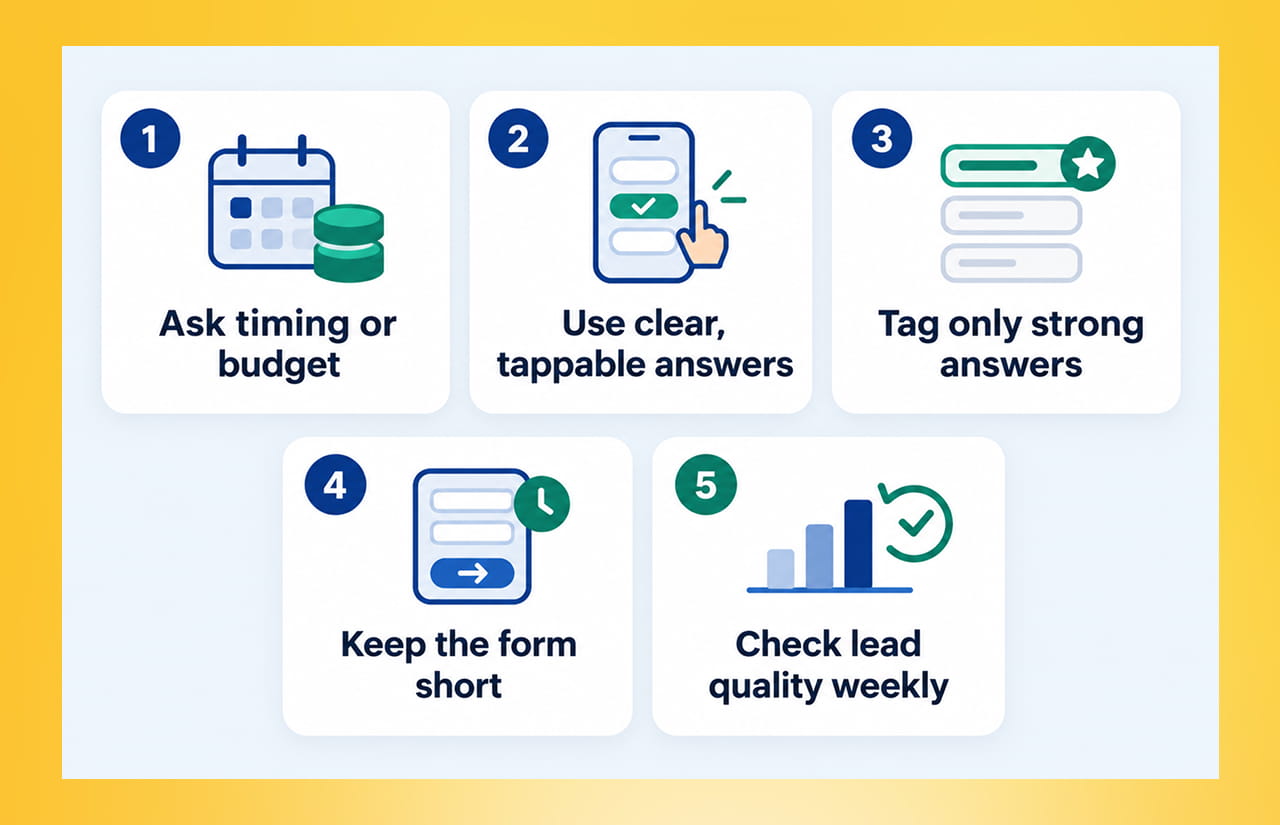
Five habits for better qualifying questions.
- Ask about timing or budget. For example: “When do you need this?” with answers like “This week”, “This month” and “Just looking”.
- Use clear answers. Each answer should be easy to pick on a small phone screen.
- Mark only your strong answers. If every answer counts as qualified, the tag tells you nothing.
- Keep the form short. Every added step can lose some people.
- Check quality every week. Call a few leads, see whether the tagged ones were truly better and adjust.
Here is a simple example for a service business. Question: “How soon do you want to start?” Qualifying answers: “Within a week” and “Within a month”. Not qualifying: “Just exploring”.
Do Not Forget the Basics
- Download or send leads often. Google says it stores leads for 60 days.
- Answer quickly. A qualified lead that waits three days is not much use.
- Match your landing page. If the person later visits your site, a clear, fast website design helps turn interest into a booking.
Quick Takeaways
- Google Ads lead forms can now tag a lead as qualified based on a multiple-choice answer you choose.
- Google calls it “qualifying responses”. It is not a numeric score.
- It is for Search campaigns, and the question cannot be optional.
- Qualified leads appear in your lead data and under a Qualified lead goal, but Google does not explain how bidding uses it.
- Write short, clear questions, mark only strong answers and check quality every week.
Let’s Talk: Turn More Google Ads Leads Into Qualified Prospects
Getting leads through Google Ads is only the first step. The real challenge is identifying which enquiries are worth pursuing and which are unlikely to turn into customers. With Google’s new qualifying response feature, businesses can now use multiple choice questions to identify promising leads directly through eligible Search campaign lead forms.
At Outsourced365, we help businesses improve their Google Ads lead generation strategy, create effective lead forms and connect enquiries with the right follow up process. From choosing the right qualifying questions to improving landing pages, our team can help you focus on lead quality instead of just lead volume.
We can help you:
- Set up Google Ads lead forms with qualifying questions
- Create clear questions that identify high intent prospects
- Configure qualifying answers to highlight stronger leads
- Connect lead forms with your CRM for better follow up
- Review lead quality and improve campaign performance
- Optimise landing pages to turn enquiries into customers
- Improve conversion tracking and lead management processes
- Provide ongoing Google Ads management and digital marketing support
If your Google Ads campaigns are generating enquiries but not enough quality prospects, it may be time to rethink how you capture and qualify leads. Get in touch with Outsourced365 through our contact form and let’s improve your lead generation process so your team can spend more time on enquiries that matter.
Outsourced365 Services are designed to help you grow
Contact us Today!
Why Companies Build Websites with Outsourced365
With our web design services, you will get:
- Modern, conversion-focused layouts
- Responsive design across all devices
- Optimized user experience and navigation
- Scalable websites built for growth

Related Posts
See all posts