
How to Set Up Backups and Uptime Monitoring for Your Website
- September 4, 2026
-
365admin2015
- Outsourcing
 9 mins read
Losing a website, even for a few hours, can cost sales, leads, and trust. Two safety nets fix most of that risk: backups (saved copies of your site you can restore from if something breaks) and uptime monitoring (a system that checks your site regularly and alerts you the moment it goes offline).
Website backup and uptime monitoring are two essential parts of keeping a business website reliable and recoverable. Backups give you a way to restore important website files and data when something goes wrong, while uptime monitoring helps detect when your website becomes unavailable. When these two processes work together, businesses can respond to technical problems faster, reduce downtime, and protect their online operations.
Both can be automated, and both can also be done manually if you'd rather not rely on a tool. Which approach makes sense depends heavily on which platform your site runs on. This guide walks through both automated and manual options for WordPress, Shopify, Wix, Squarespace, Magento, and Joomla. If you'd rather have this set up, tested, and managed for you, our website development and maintenance services cover exactly this across all six platforms.
Why Backups and Uptime Monitoring Are Different Jobs
- Backups undo damage after it happens — a bad update, a hack, an accidental delete.
- Uptime monitoring catches problems the moment they happen — a server crash, an expired domain, a hosting outage — so you're not the last to know your own site is down.
You need both. A backup with no monitoring means your site could be down for days before anyone notices. Monitoring with no backup means you'll know instantly that something broke, with no quick way to fix it.
Self-Hosted vs Fully-Hosted: Why Setup Differs by Platform
- Self-hosted platforms — WordPress, Magento, Joomla — run on a server you or your host control. You can back up
everything (files, database, media), and you can also install monitoring tools directly on the server if you want. - Fully-hosted platforms — Shopify, Wix, Squarespace — run entirely on the platform's own servers. You can only export the data the platform allows (products, content, orders), and uptime monitoring has to come from an outside service that checks your site's public web address, since there's no server for a plugin to run on.
Website Backup and Uptime Monitoring: At a Glance
| Platform | Hosting Type | Automated Backup | Automated Uptime Monitoring |
| WordPress | Self-hosted | Plugin (UpdraftPlus, All-in-One WP Migration) | External service |
| Shopify | Fully hosted | App (Rewind) | External service only |
| Wix | Fully hosted | None (manual only) | External service only |
| Squarespace | Fully hosted | Third-party tool | External service only |
| Magento | Self-hosted | Extension or CLI | Extension or external service |
| Joomla | Self-hosted | Extension (Akeeba) | External service (no reliable plugin) |
WordPress
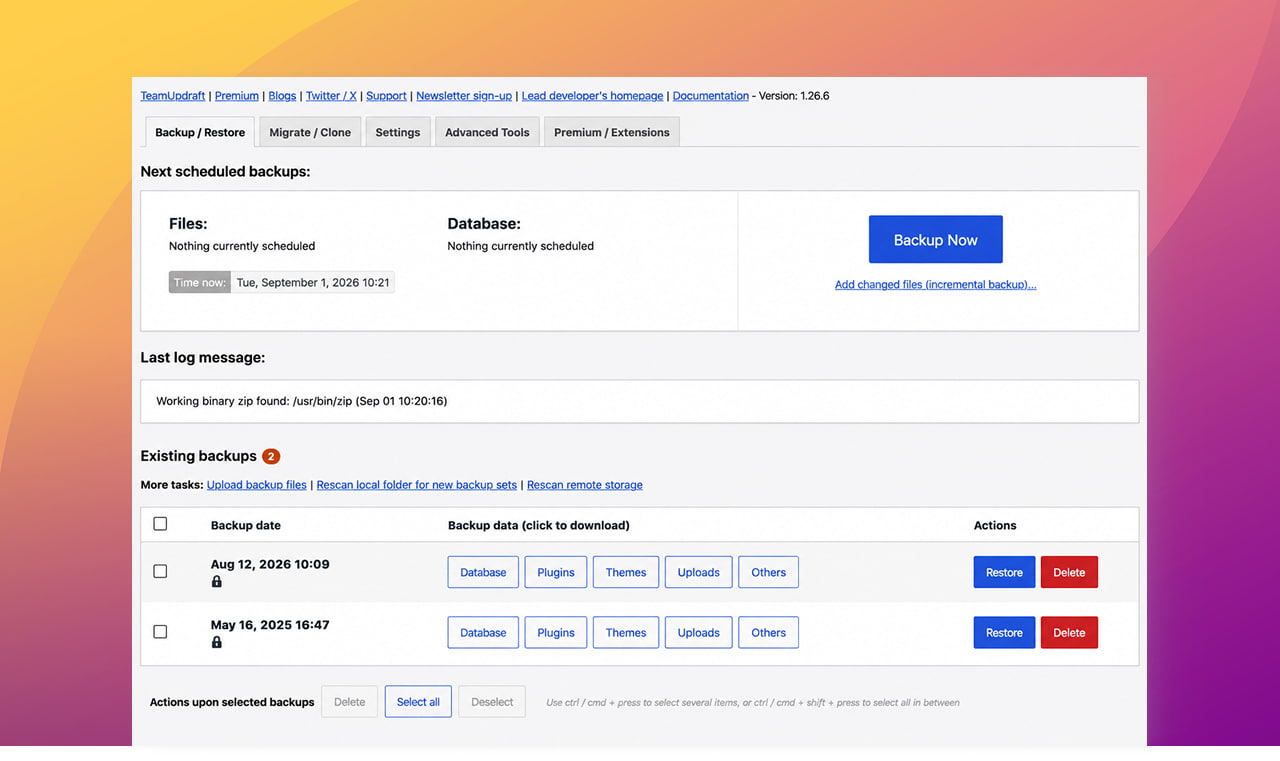
WordPress is self-hosted, so full backups and on-site monitoring are both possible. Three plugins cover most of what a small business site needs: UpdraftPlus, All-in-One and WP Migration. They work a little differently from each other, so it's worth knowing which fits before installing one.
UpdraftPlus
UpdraftPlus is the most widely used option, and it handles both automated and manual backups from the same plugin.
Setting up automated backups:
- Install and activate UpdraftPlus from Plugins → Add New.
- Go to Settings → UpdraftPlus Backups and open the Settings tab.
- Choose how often files and the database should back up (daily or weekly is typical for most sites) and how many backups to keep.
- Connect a remote storage destination — Google Drive, Dropbox, and Amazon S3 are all supported free — so backups are saved off your server, not just on it.
- Save your settings. UpdraftPlus will now run on that schedule automatically, with no further action needed.
Running a manual backup:
- From the same UpdraftPlus Backups page, open the Backup / Restore tab.
- Click "Backup Now."
- Choose whether to include the database and files, then confirm.
- Once complete, the backup appears in the list below, where it can be downloaded or restored with a few clicks.
All-in-One WP Migration
All-in-One WP Migration packages your entire site — database, media, themes, and plugins — into a single .wpress file. In its free version, this is a manual, one-click export rather than a scheduled process; automatic scheduling requires a premium extension.
Manual backup steps:
- Install and activate All-in-One WP Migration.
- Go to All-in-One WP Migration → Export in the dashboard sidebar.
- Click "Export To" and choose "File."
- Wait for the export to finish — larger sites take longer, since the plugin compresses everything into one file.
- Click Download to save the .wpress file to your computer, or find it later under All-in-One WP Migration → Backups.
- Store the downloaded file somewhere off the server and repeat before any major update or change.
Shopify
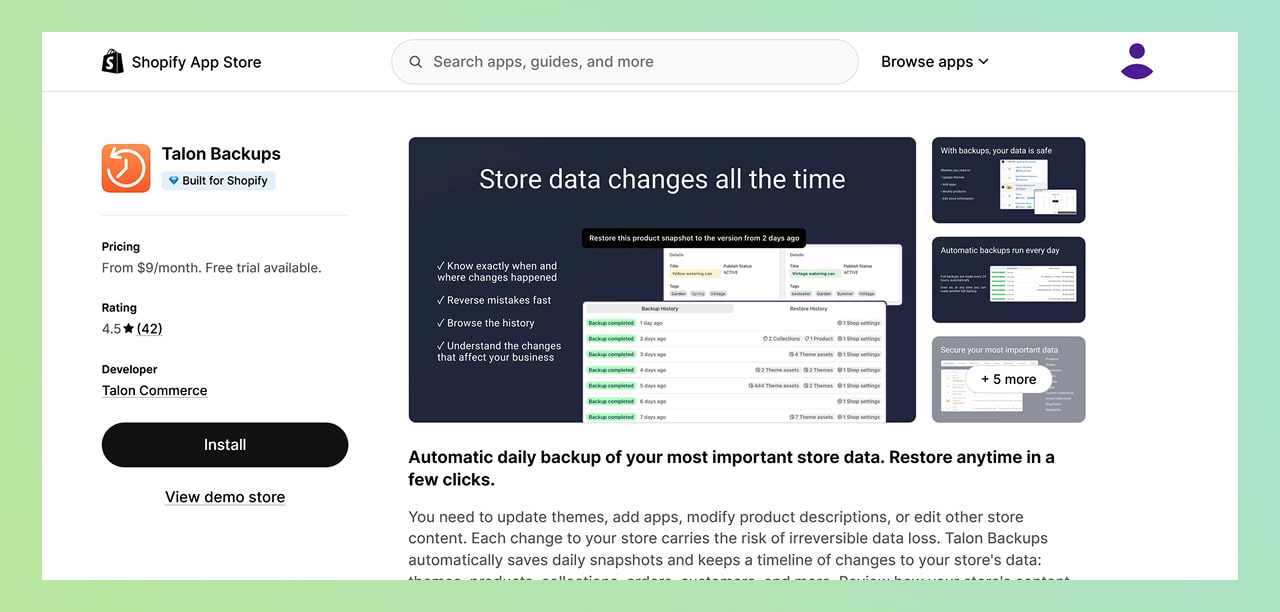
Shopify is fully hosted. There's no way to download a complete copy of your store, and no way to install a monitoring plugin on Shopify's servers — everything runs through apps and external services instead.
Automated backups: Rewind is the most established Shopify backup app. Install it from the Shopify App Store, connect it to your store, and it takes daily automatic backups covering products, themes, customers, orders, and pages, with the option to restore a single item rather than the whole store.
Manual backup steps:
- Go to Products in your admin, click Export, choose "All products," and select CSV. Shopify emails you a download link.
- Repeat the same export process under Customers.
- Go to Online Store → Themes and choose "Download theme file" for your active theme.
- Separately save product images and page content, since CSV exports don't include these.
Automated uptime monitoring: Because Shopify hosts everything, monitoring has to come from an external service — UptimeRobot, Uptimia, or a Shopify-specific tool like Uptime. These work by checking your storefront's public URL at regular intervals (as often as every 30 seconds on some services), with no installation on your store required. Sign up, enter your store URL, set the check frequency, and add your alert email or phone number.
Manual uptime checks: Shopify being "up" doesn't guarantee your storefront works — a broken theme edit or a failed app can still make pages blank. Periodically clicking through your homepage, a product page, and checkout yourself is a rough manual substitute, but it won't catch anything between checks.
Wix

Wix is a closed, fully-hosted platform. There's no full export option — content has to be saved manually — and monitoring works the same way as Shopify, entirely from the outside.
Built-in option: Wix automatically keeps a version history through its editor, letting you undo recent edits. This isn't a full backup, but it protects against small mistakes.
Manual backup steps:
- List every page, including blog and product pages, so nothing is missed.
- Copy text content into a document, keeping the heading structure intact.
- If you run Wix Stores, export your product list as a CSV from the Store dashboard.
- Download images from the Wix Media Manager or by right-clicking them on the live site.
- Note navigation menus, SEO settings, and any custom code separately.
Automated uptime monitoring: As with Shopify, use an external service such as UptimeRobot or Uptimia — enter your site's public URL, set a check interval, and add your alert contacts. No installation on Wix is possible or necessary.
Manual uptime checks: Visiting your site periodically yourself is the only manual option, since Wix offers no built-in downtime alert of its own.
Squarespace
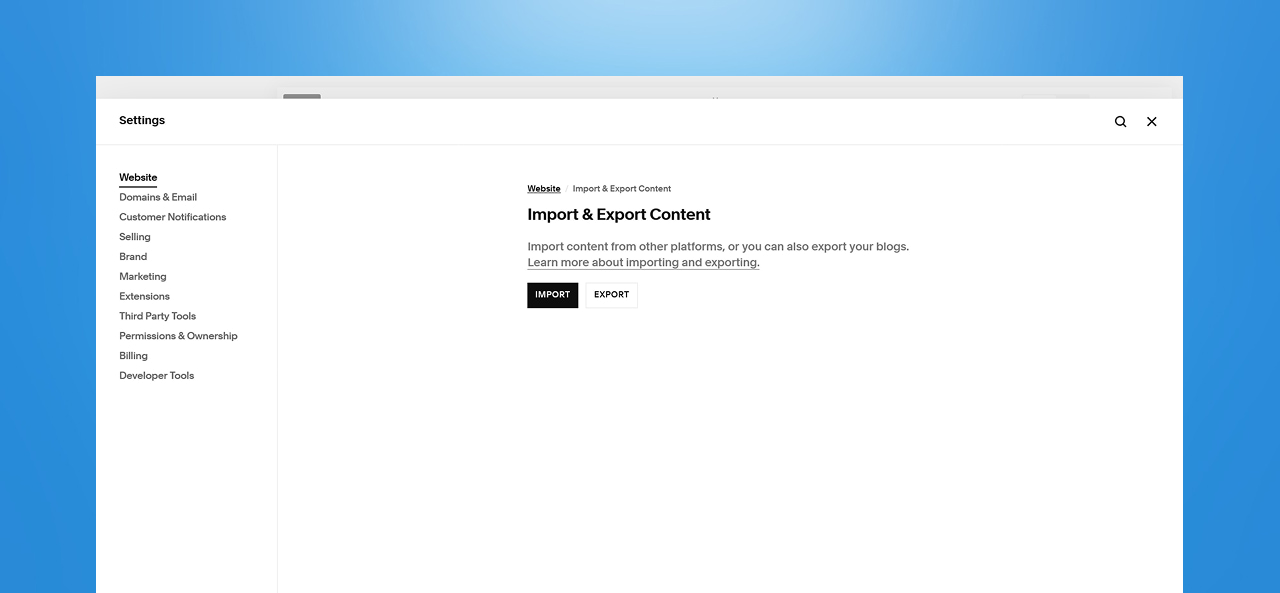
Squarespace is also fully hosted, but it offers one built-in export tool the others don't.
Manual backup steps:
- Go to Settings → Advanced → Import/Export.
- Click Export, then choose the WordPress icon to generate an XML file of your pages and blog posts.
- Export product and order data separately under Commerce → Inventory → Export All.
- Manually download images, since they aren't included in the XML export.
- If you've added custom CSS, copy it into a plain text file under Design → Custom CSS — this is never included in an export.
Automated backup alternative: Third-party tools such as Backupery for Squarespace can automate parts of this process, though there's no official app marketplace for backups the way WordPress and Shopify have.
Automated uptime monitoring: Same approach as Shopify and Wix — an external service like UptimeRobot checks your site's public URL on a schedule and alerts you by email or SMS if it goes down. No plugin exists because Squarespace doesn't allow installed code.
Manual uptime checks: Periodic manual visits are the only option without a monitoring service, and carry the same blind-spot limitation as the other hosted platforms.
Magento
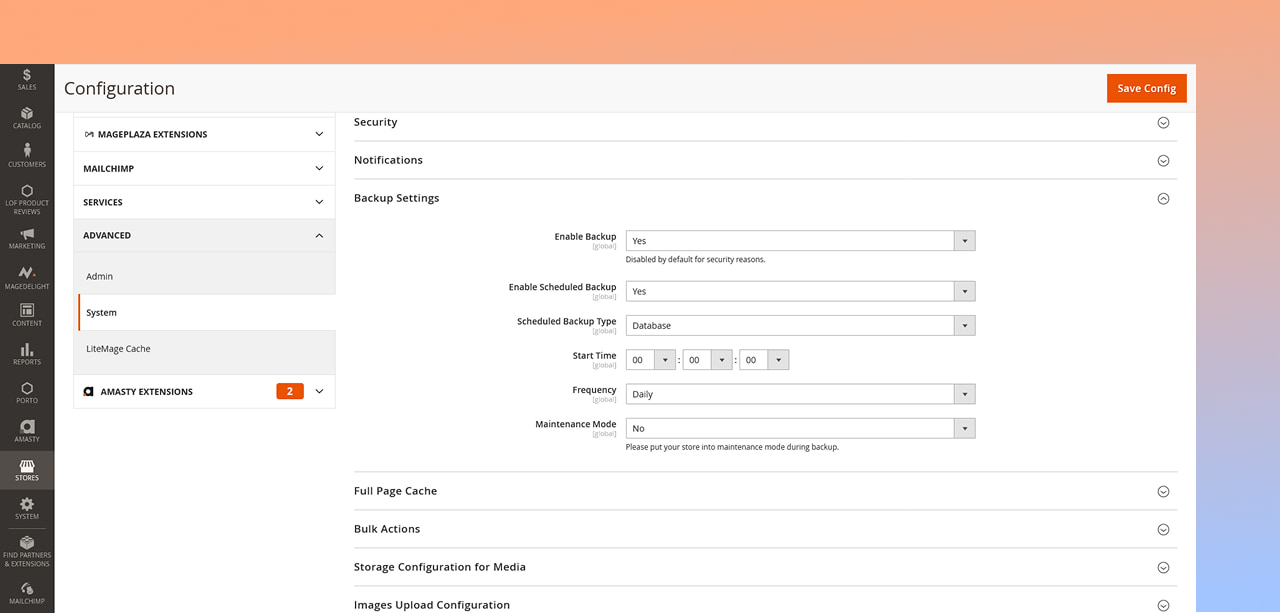
Magento is self-hosted, but its own built-in backup tool was removed starting with Magento 2.3, so both backups and monitoring now rely on extensions or the command line.
Automated backups: Extensions such as Backup Manager for Magento add scheduled backups with cloud storage support (Dropbox, Google Drive, OneDrive) — effectively replacing the feature Magento used to include natively.
Manual backup steps:
- Back up the database: run mysqldump -u [username] -p [database_name] > backup_filename.sql from the command line.
- Compress the file, for example with tar -czvf backup_filename.tar.gz backup_filename.sql.
- Back up files — the app, pub/media, and any custom code directories — via FTP or rsync.
- Alternatively, run bin/magento setup:backup --db for a quicker database-only backup on Open Source installs.
Automated uptime monitoring: Extensions like Super Monitoring integrate an external monitoring service directly into the Magento admin panel, so alerts and reports show up without leaving the dashboard. You can also skip the extension and connect an external service like UptimeRobot directly to your storefront URL.
Manual uptime checks: Checking your hosting provider's server status page, combined with periodically loading the storefront and checkout yourself, is a reasonable manual stand-in for a small store, but won't replace continuous monitoring.
Joomla
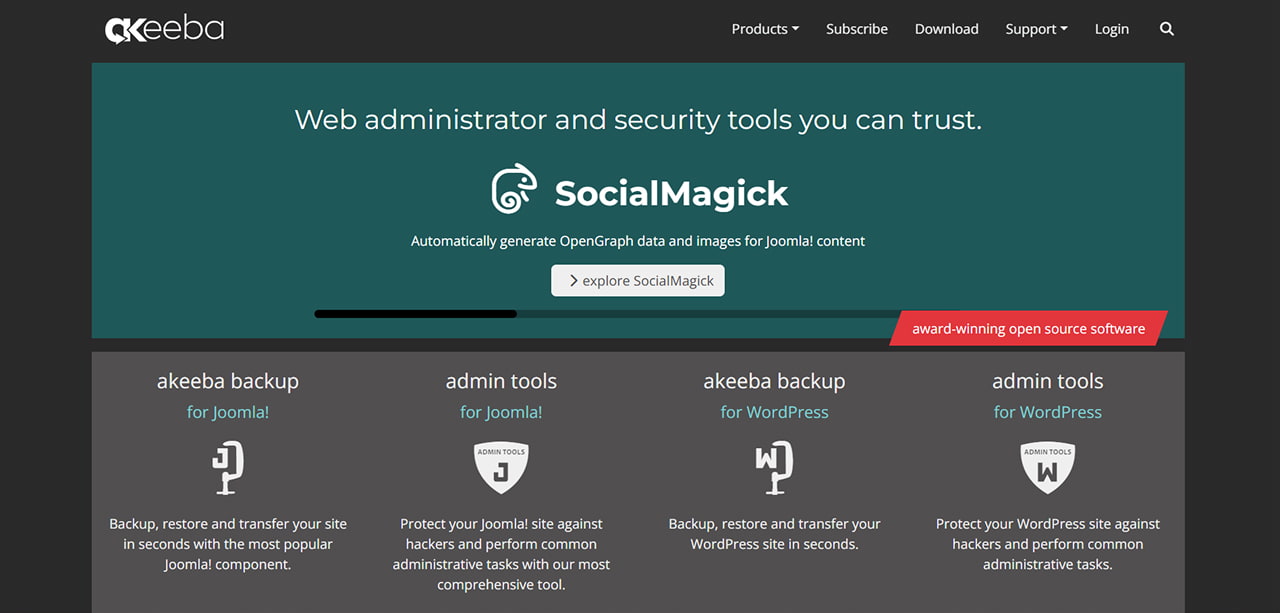
Joomla is self-hosted, and the community has largely standardized around one extension for backups; for uptime, external monitoring is the norm since no plugin reliably handles it from inside Joomla itself.
Automated backups: Akeeba Backup is the long-standing default choice — free in its Core edition. Install it from the Joomla Extension Directory, go to Components → Akeeba Backup, let the Configuration Wizard run, then click "Backup Now" to bundle your files, database, and a restoration script into one archive. The paid Professional edition adds scheduling and cloud storage destinations like Amazon S3 and Dropbox.
Manual backup steps (without an extension):
- Export the database through phpMyAdmin: select the database, click Export, choose SQL format, and download.
- Connect via FTP and download your Joomla file directory, particularly the images folder and any custom template files.
- Store both off the server.
Automated uptime monitoring: An extension called Super Monitoring integrates an external monitoring service into the Joomla admin panel, similar to the Magento version. More commonly, site owners skip the extension entirely and connect an external service like UptimeRobot straight to their site's URL — this is the approach recommended in Joomla's own community forums, since monitoring is more reliable when it runs independently of the site being checked.
Manual uptime checks: As with the other platforms, manually visiting the site is the only no-tool option, and it only catches outages that happen to occur while you're looking.
Quick Takeaways
- Backups and uptime monitoring solve different problems — you need both, not one or the other.
- Self-hosted platforms (WordPress, Magento, Joomla) support full backups and on-site monitoring plugins; fully-hosted platforms (Shopify, Wix, Squarespace) only allow data exports and rely entirely on external monitoring services.
- Automated tools remove the risk of forgetting — manual backups and manual uptime checks are only as good as your last check.
- Store every backup off the platform or server it came from, so one failure doesn't take out your live site and your only copy at once.
- Test a restore at least once. A backup you've never restored is an assumption, not a safety net.
LET'S TALK: KEEP YOUR WEBSITE BACKED UP AND ONLINE, WHATEVER IT'S BUILT ON
Every platform handles backups and uptime differently, and it's easy to assume you're covered when you're not — a plugin that was never actually scheduled, an export that's months out of date, or a monitoring alert that's going to an inbox nobody checks. Finding that out during an actual emergency is the worst possible time.
At Outsourced365, we build and maintain websites across WordPress, Shopify, Wix, Squarespace, Magento, and Joomla, and backups and uptime monitoring are a standard part of how we look after every site we manage — configured correctly, tested, and watched, so you're not the one finding out something broke.
We can help you:
- Set up the right backup plugin, app, or extension for your specific platform
- Configure manual export routines for platforms where a full backup isn't possible
- Set up real-time uptime alerts sent to the right people on your team
- Store backups securely off-platform, on a schedule that matches how often your site changes
- Test restores so you know your backup works before you're relying on it in a crisis
- Maintain and monitor your website on an ongoing basis, across any of these platforms
If your website doesn't currently have backups or uptime monitoring in place — or you're not sure the ones you have are actually working — get in touch with Outsourced365 through our contact form and let's get your site properly protected.
Outsourced365 Services are designed to help you grow
Contact us Today!
Why Companies Build Websites with Outsourced365
With our web design services, you will get:
- Modern, conversion-focused layouts
- Responsive design across all devices
- Optimized user experience and navigation
- Scalable websites built for growth

Related Posts
See all posts